SportVitals User Manual & Comprehensive Guide
The complete official user manual and guide for SportVitals on iOS and watchOS. Learn how to monitor recovery, training readiness, sleep, HRV, and physiological metrics.
SportVitals User Manual & Official Guide
Welcome to the official user manual for SportVitals, your privacy-first, 100% on-device health, recovery, and training companion for iOS and watchOS.
This guide provides a comprehensive overview of SportVitals features, step-by-step instructions for getting started, detailed metric explanations, Apple Watch integration, widget setup, and troubleshooting solutions.
1. Core Philosophy & Privacy
SportVitals is designed with a fundamental promise: your health data belongs entirely to you.
- 100% On-Device Processing: All calculations, algorithms, data storage, and AI explanations run locally on your iPhone and Apple Watch using Apple’s native HealthKit and SwiftData frameworks.
- Zero Cloud & Zero Tracking: We do not operate external cloud servers, nor do we track your behavior, display advertisements, or collect analytics.
- No Subscriptions: Pay once on the App Store and receive lifetime access with all future updates included.
2. Getting Started & Onboarding
2.1 Initial Setup & HealthKit Permissions
When you launch SportVitals for the first time, the onboarding flow will request permission to read data from Apple HealthKit.
- When prompted by iOS, tap “Turn On All” (or enable individual permissions: Heart Rate, Heart Rate Variability, Sleep, Workouts, Resting Heart Rate, Active/Resting Energy, Mindfulness, Blood Pressure, Body Fat Percentage, Respiration Rate, and Wrist Temperature).
- Ensure that your Apple Watch is paired with your iPhone and worn comfortably while sleeping to capture overnight HRV (RMSSD) and sleep architecture.
[!IMPORTANT] Apple HealthKit enforces strict privacy rules. If a permission is denied, iOS will not notify the app; instead, it returns an empty data set. See Section 10 if you encounter missing metrics or blank screens.
2.2 The 21-Day HRV Baseline Window
SportVitals calculates your HRV Status and Baseline Range using a rolling 21-day personal window of overnight RMSSD measurements.
- Days 1–7: Initial calibration period. The app displays
"Baseline Building". - Days 8–20: Preliminary personal range is established.
- Day 21+: Fully calibrated baseline. Nightly HRV is continuously classified as Balanced, Unbalanced, or Low.
3. Navigating & Customizing the Dashboard
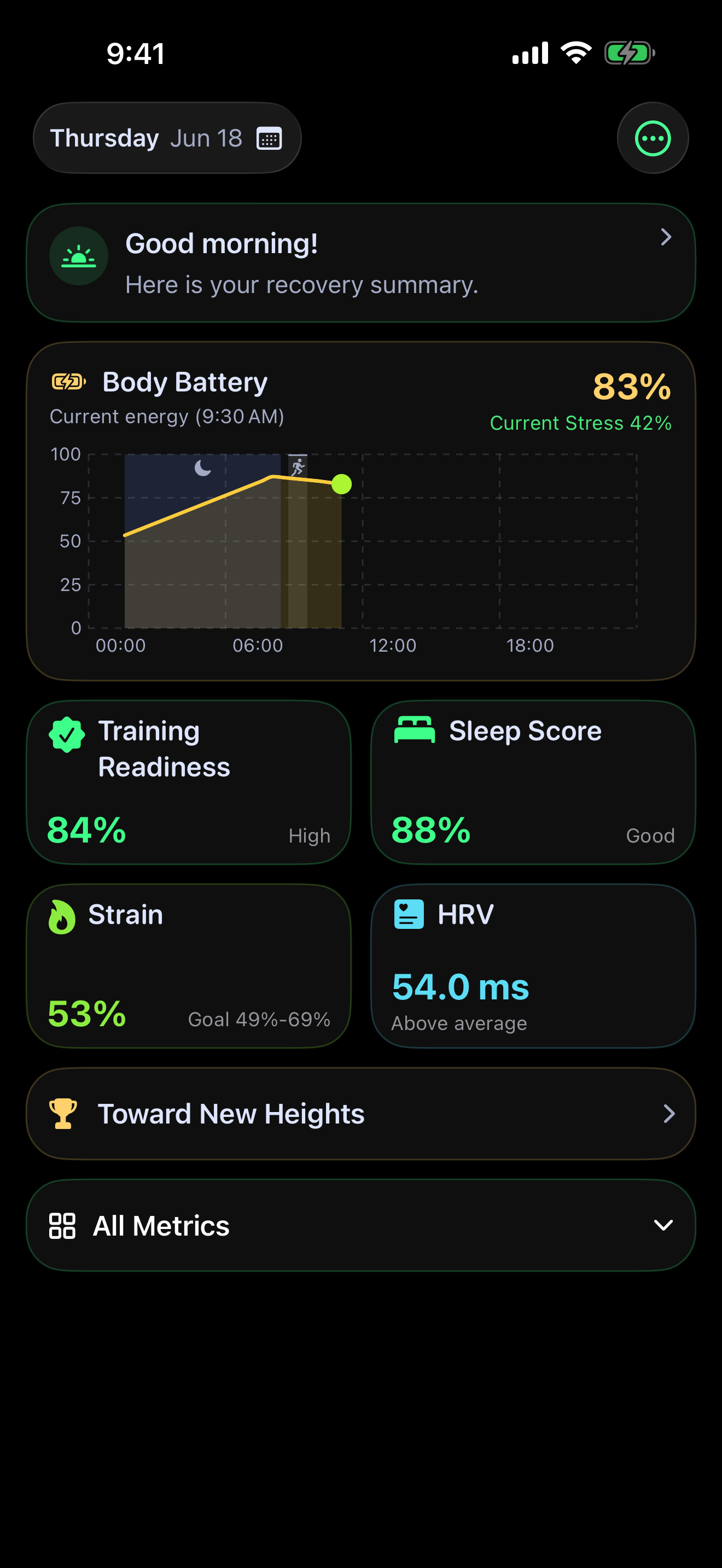
Customizing Your Dashboard Layout
You can personalize the dashboard to focus on what matters most to you:
- Reorder Cards: Use the customize menu to rearrange metrics within any section.
- Card Sizing & Visibility: Toggle card sizes (Compact vs. Expanded) or hide metrics you do not wish to track.
- Watch Sync: Your section ordering is automatically synchronized to your Apple Watch dashboard.
4. Recovery & Energy Metrics
4.1 Body Battery (0–100)
Body Battery estimates your body’s available energy reserves throughout the day.
- Charging (+): Charges during sleep and periods of deep rest when autonomic stress is low.
- Draining (-): Drains during wakefulness, physical activity (TRIMP load drain), and mental or physical stress.
- How to Use: Check your morning level (target 80–100%) to decide whether to push hard or schedule a recovery day.
4.2 Nighttime HRV Status & RMSSD
Tracks autonomic nervous system recovery by measuring beat-to-beat (R-R) interval variations (RMSSD) during main sleep sessions.
- Balanced: HRV is within your normal 21-day range. Indicates good recovery and stress resilience.
- Unbalanced: HRV is elevated or depressed beyond your baseline. May indicate acute fatigue, alcohol consumption, onset of illness, or high stress.
- Low: Significantly depressed HRV. Strong signal for rest.
4.3 Sleep Score & Sleep Bank
- Sleep Score (0–100): Evaluates sleep duration (7–9h target), efficiency, deep & REM sleep proportions, awakenings, schedule consistency, and HRV.
- Sleep Bank: Tracks sleep duration against your target over a rolling 7-night window to calculate Sleep Debt or Sleep Surplus.
4.4 Stress Level (0–100) & Dual-Input Stress
Monitors continuous sympathetic vs. parasympathetic nervous system activation.
- Ranges: Rest (0–25), Low (26–50), Medium (51–75), High (76–100).
- Uses real-time heart rate elevation over resting baseline combined with short-term HRV samples.
4.5 Dynamic Recovery Time (0–96 Hours)
Calculates a countdown timer indicating when your body will fully recover from your recent training loads.
- Dynamic Modulation: The timer speeds up during high-quality sleep and low stress, or slows down if sleep is poor or stress remains elevated.
4.6 Resilience Score (0–100)
Measures long-term physiological adaptability across 5 pillars: HRV Stability (25%), Sleep Consistency (20%), Stress Tolerance (20%), Vital Signs Stability (20%), and Recovery Speed (15%).
5. Training & Performance Metrics
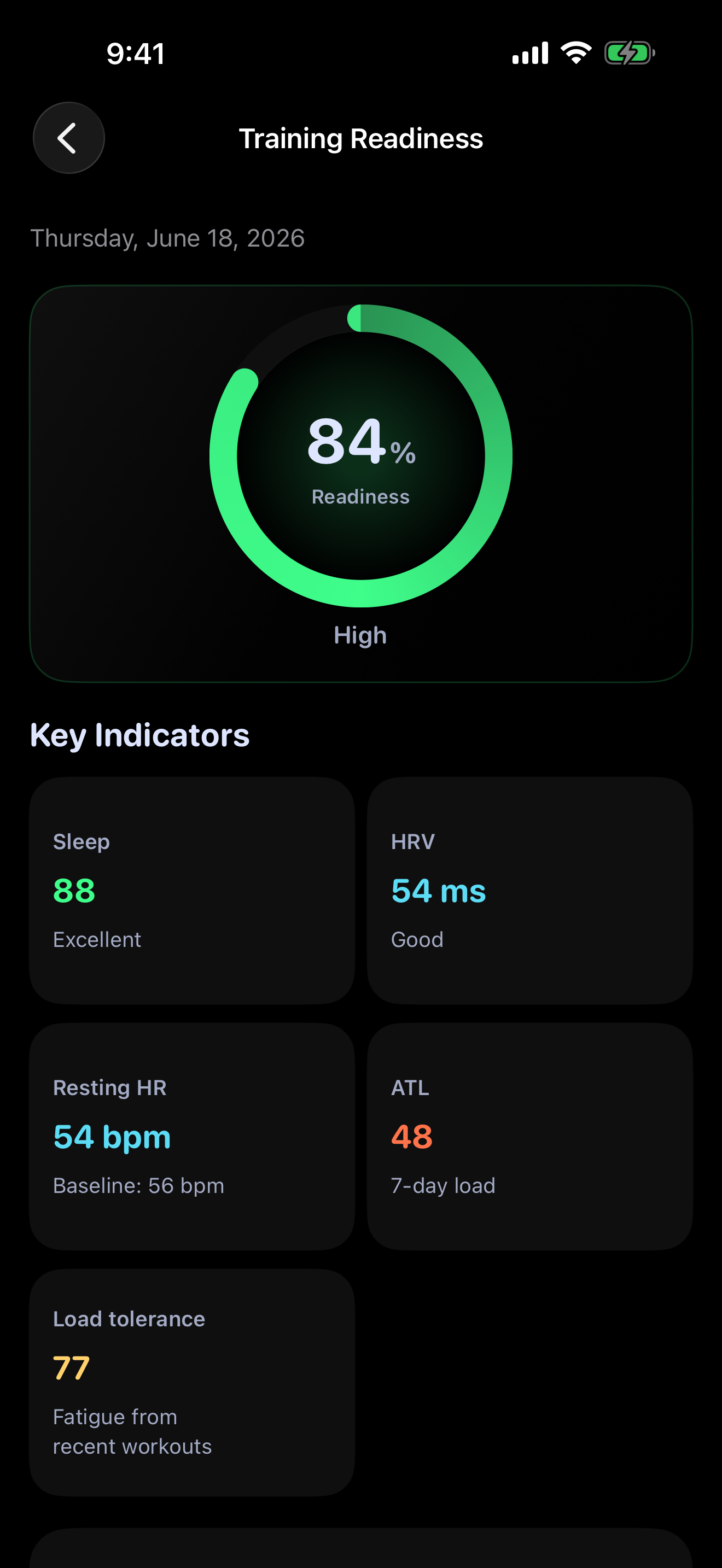
5.1 Training Readiness (0–100)
Indicates your physical capacity for demanding training on any given day.
- Morning Snapshot: Calculated after waking using Sleep Score (15%), Load Recovery (30%), HRV Status (20%), Load Tolerance (25%), Sleep History (5%), and Stress History (5%).
- Intraday Workout Reduction: As you complete workouts during the day, your readiness starts from the morning snapshot and is reduced based on workout TRIMP and updated ATL/CTL load.
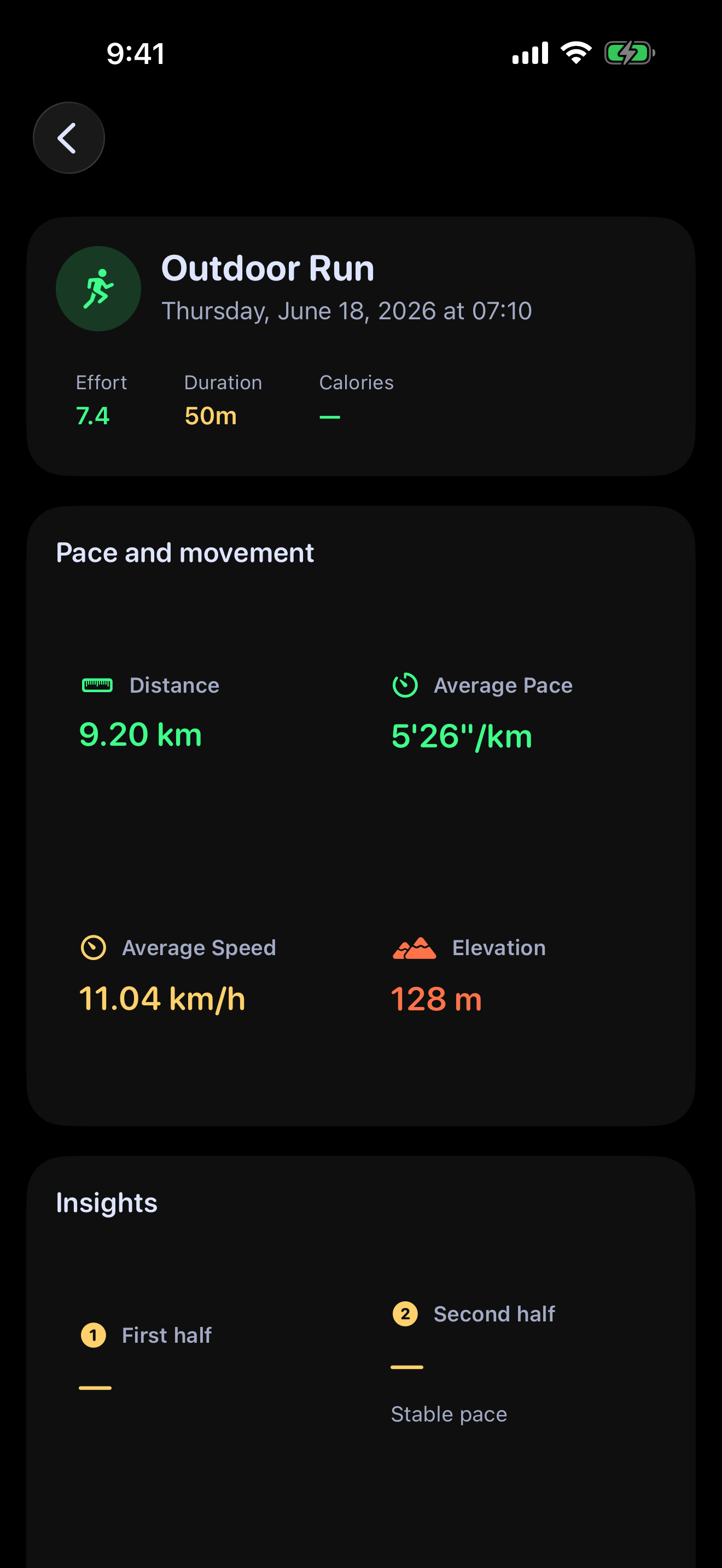
5.2 Training Load (TRIMP, ATL, CTL, TSB & ACWR)
- TRIMP (Training Impulse): Scores cardio exertion per workout using duration and heart rate relative to your max and resting heart rates.
- ATL (Acute Training Load - 7 Days): Represents short-term fatigue.
- CTL (Chronic Training Load - 42 Days): Represents long-term fitness.
- TSB (Training Stress Balance):
CTL - ATL. Positive values indicate freshness; negative values indicate accumulated fatigue. - ACWR (Acute-to-Chronic Workload Ratio):
ATL / CTL.0.8 – 1.3: Sweet Spot (optimal progression, low injury risk).> 1.5: Danger Zone (high risk of overtraining or injury).
5.3 Training Status & Focus
Classifies your overall phase: Productive, Maintaining, Recovery, Overreaching, Strained, or Unproductive.
5.4 VO2 Max, Endurance Score & Hill Score
- VO2 Max: Reads Apple Health estimates with daily fallback proxies.
- Endurance Score (1000–10000): Combines VO2 Max, 42-day volume (CTL), activity frequency, and 14-day training consistency.
- Hill Score (0–100): Evaluates climbing capability by combining VO2 Max, endurance, and elevation gain/grade history.
- Race Predictor: Models 5K, 10K, Half Marathon, and Full Marathon completion times based on VO2 Max, endurance, and running history.
6. Cardiovascular & Vital Signs Tracking
- Resting Heart Rate (RHR): Continuous daily trend tracking with baseline comparison.
- Paired Blood Pressure: Paired Systolic & Diastolic readings (in mmHg) with multi-period selection (7D, 1M, 3M, 6M, 1Y).
- Body Weight & Body Fat %: Tracks body composition trends from Apple Health scale inputs.
- Mindfulness Minutes: Tracks daily mindful sessions and stress-reduction practice.
- Skin Temperature & Respiration Rate: Detects acute physiological deviations during sleep.
7. Biological Age Calculator
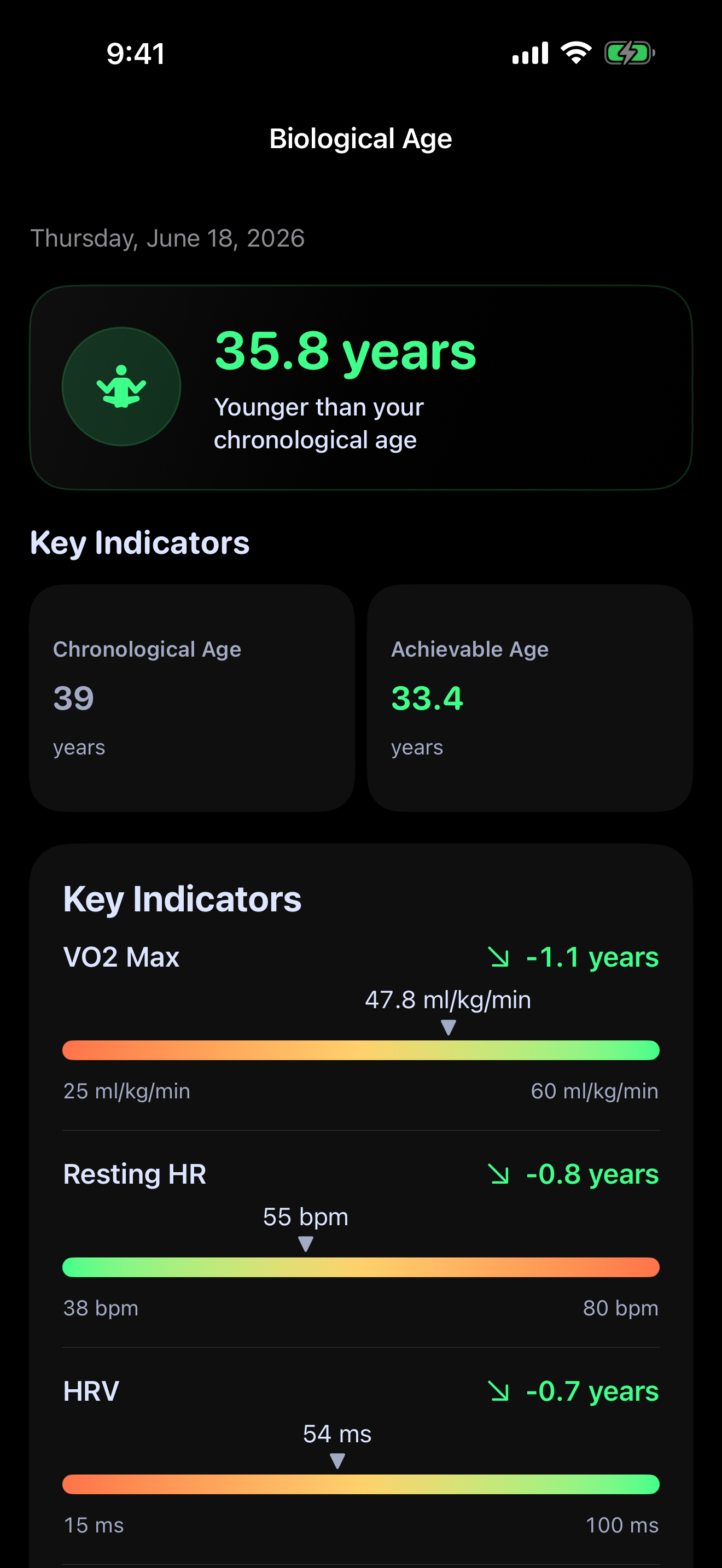
SportVitals estimates your Biological Age compared to your chronological age by evaluating 11 physiological factors over a 4-week window:
- VO2 Max (Cardiovascular fitness)
- Resting Heart Rate (Autonomic efficiency)
- Nighttime RMSSD (HRV health)
- Body Fat Percentage (Composition)
- 2-Minute Heart Rate Recovery (Cardiac recovery speed)
- Sleep Duration & Efficiency
- Sleep Consistency & Architecture
- 4-Week Training Volume (CTL)
- Activity Frequency & Consistency
- Daily Stress & Resilience
- Vital Signs Stability
Fair Exclusion Rule: If a parameter (e.g., Body Fat %) is not recorded in Apple Health, it is excluded rather than penalized, ensuring an accurate and unskewed biological age estimate.
8. Apple Watch Companion App & Complications
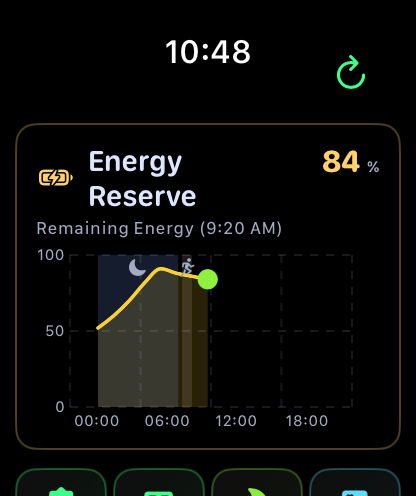
The SportVitals watchOS App provides an independent, glanceable view of your health directly on your wrist:
- Glanceable Dashboard: Displays the same dashboard cards as your iPhone. The top section starts expanded for immediate access.
- Workout Tracking: Monitor heart rate, Z0–Z5 cardio zones, active calories, and TRIMP ifor your workouts.
- WidgetKit Complications: Add SportVitals complications (Body Battery, Readiness, HRV, Stress, Sleep) to your favorite Apple Watch faces.
- Autonomous Fallback: If disconnected from your iPhone, Apple Watch computes local fallback metrics from its local 7-day HealthKit data. When reconnected, it seamlessly syncs via native
WatchConnectivity.
9. iOS Home Screen Widgets
SportVitals includes native iOS Home Screen Widgets across multiple sizes:
- Small Widgets: Compact single-metric cards (Body Battery gauge, Training Readiness score, HRV Status, Resting HR).
- Medium Widgets: Mid-size cards featuring intraday charts (24-hour Body Battery curve, 7-day TRIMP load, Sleep architecture).
- Large Widgets: Comprehensive overview cards for Biological Age and Heart Rate Zone breakdowns.
- Deep Linking: Tapping any widget opens SportVitals directly to that metric’s detailed view.
10. Troubleshooting & FAQs
Q1: The app shows a blank screen or pop-up during setup
This occurs due to iOS HealthKit privacy rules. When a permission prompt is answered once, iOS marks it as .unnecessary and blocks it from appearing again. If any permission was missed or turned off, HealthKit silently returns empty data.
Solution:
- Open iPhone Settings > Privacy & Security > Health > SportVitals.
- Alternatively, open Apple Health App > tap your Profile (top right) > Apps and Services > SportVitals.
- Set all permission toggles to ALLOW / ON.
Q2: Why is my HRV Status showing “Baseline Building”?
HRV Status requires 21 consecutive days of overnight HRV measurements from your Apple Watch to establish a personal normal range. The status will unlock automatically as history accumulates.
Q3: My Apple Watch data isn’t syncing to my iPhone
- Ensure Bluetooth and Wi-Fi are enabled on both devices.
- Open the SportVitals app on both your iPhone and Apple Watch simultaneously to force an instant
WatchConnectivitysync.
Q4: How do I recalculate my database or reset metrics?
Go to the Settings tab in SportVitals on your iPhone. Tap “Recalculate Historical Metrics” to rebuild your metrics from raw HealthKit data, or “Reset Local Preferences” to restore default settings.
11. Official Community & Support
Have questions, feature requests, or feedback? Join our official community:
- Reddit Subreddit: r/SportVitals
- Email Support: sportvitalsios@gmail.com
- Algorithms Documentation: How SportVitals Algorithms Work